You can fix most of the issues in your client app by resetting them, including:
1. connectivity problem
2. failed server subscribe
3. renewal after expiry (Your subscription id will change so you cannot use the previous subscription anymore.)
Please refer to the method based on your system.
A. Resetting the Windows client app
Resetting the client app on Windows system is easy. Completely remove the old client app, download the new app on the SocketPro website, and that's all.
B. Resetting the macOS client app
You can remove the client app from your macOS by using any clean-up app (e.g., CleanMyMac) on your macOS, please be aware that simply drag the app to the Trash won't delete the server configurations. After that, set up the app again.
Anyway, if you don't have any clean-up tool on your Mac, please follow the steps below:
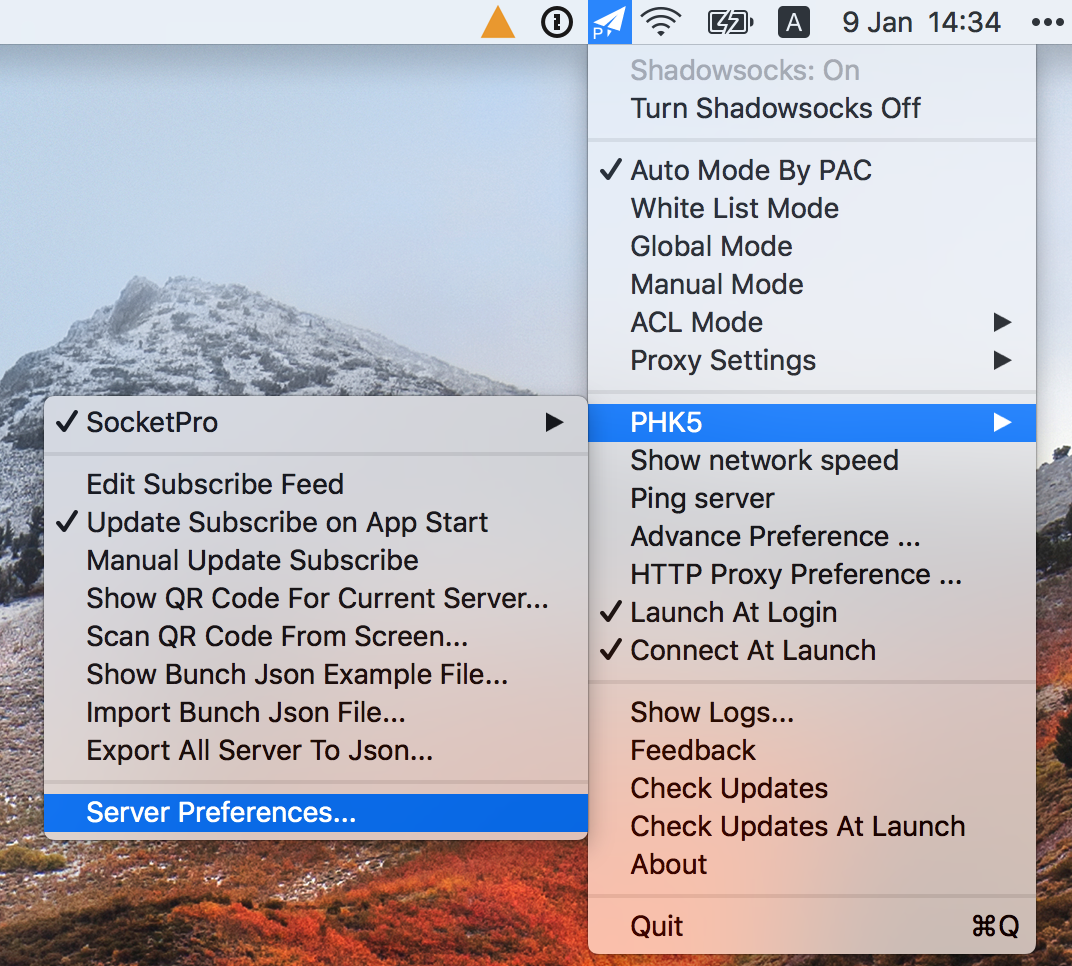
1. click the paper airplane icon in the menu bar -- Server -- Server Preferences, as shown below.
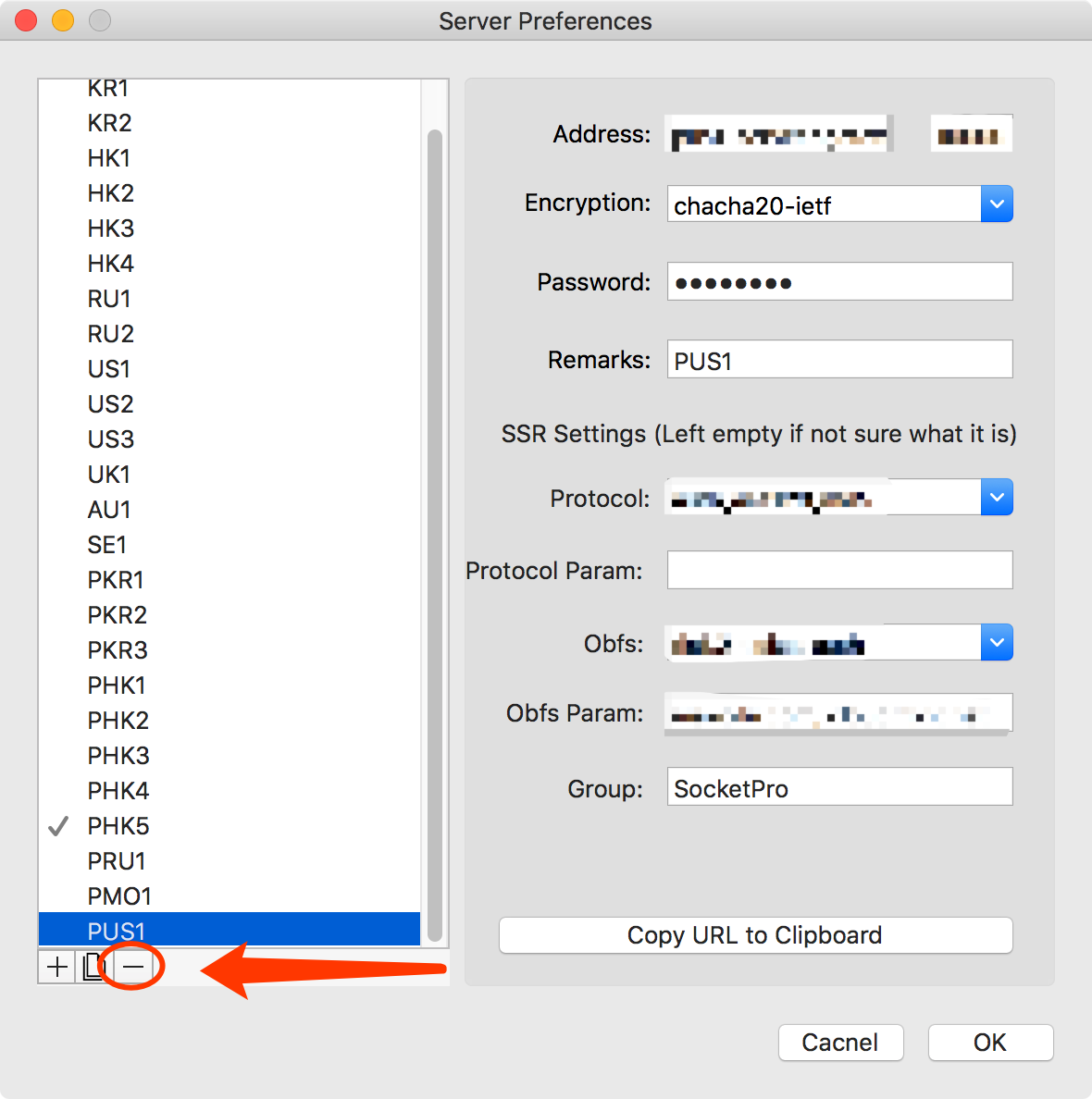
2. click 「-」button in the popped-up window to remove the servers, as shown below.
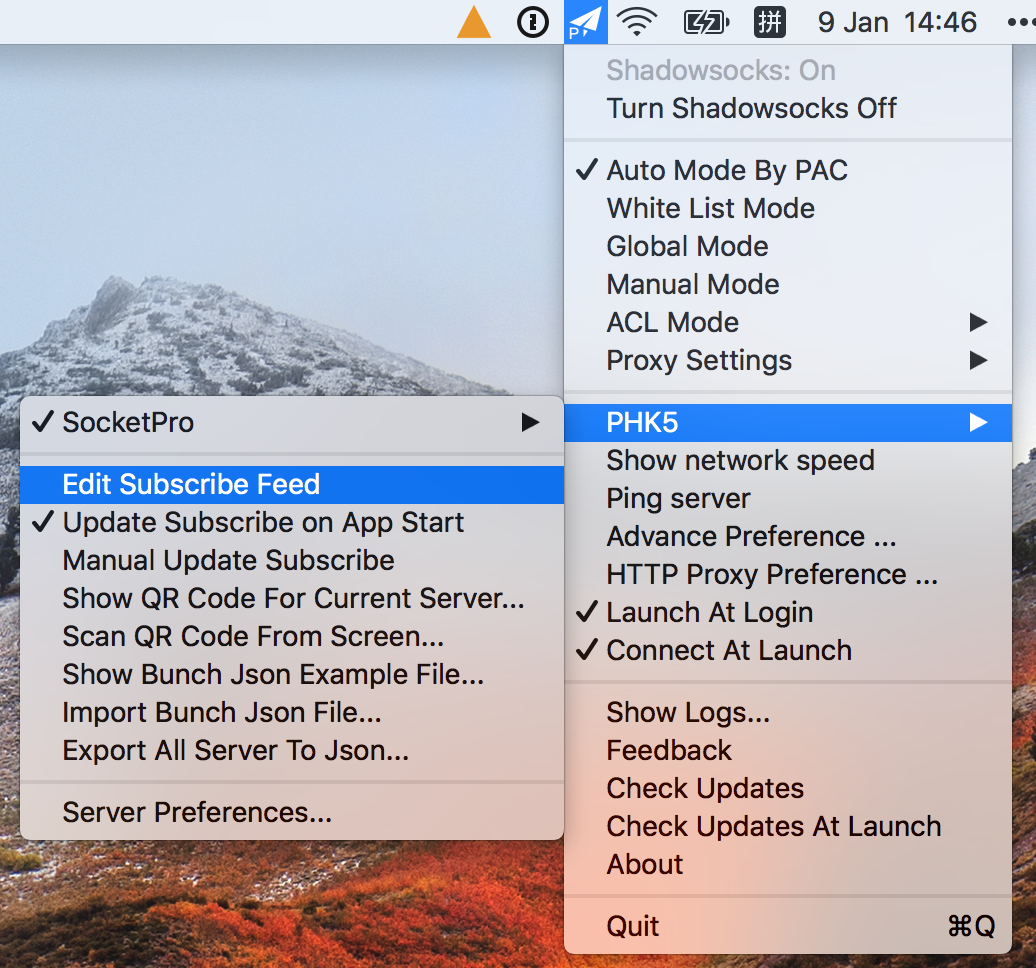
3. click the paper airplane icon in the menu bar -- Server -- Edit Subscribe Feed, as shown below.
4. click 「-」button in the popped-up window to remove the subscription, as shown below.
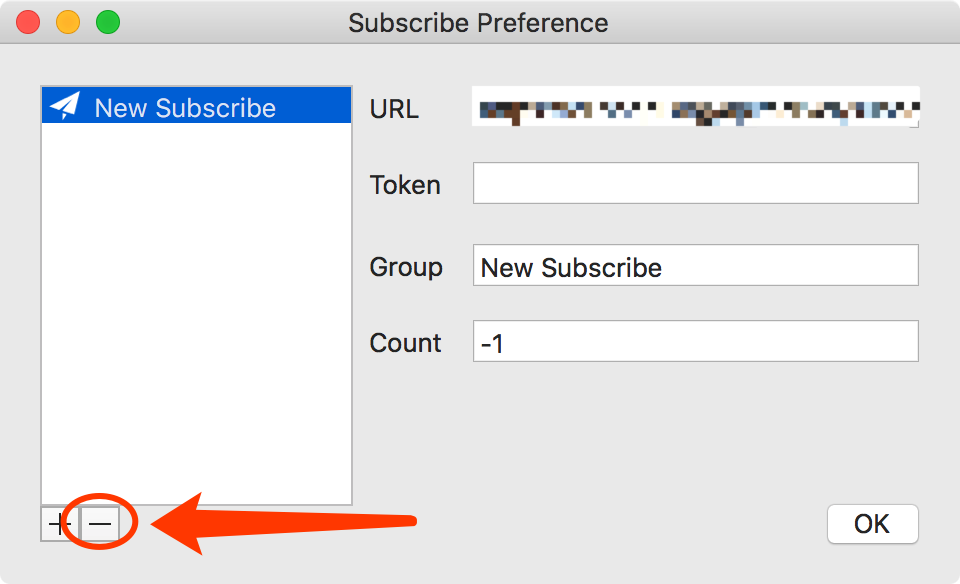
5. Click the OK button, set up the app again.
C. Resetting the iOS client app
1. Left slide the subscription and delete it, as shown below.
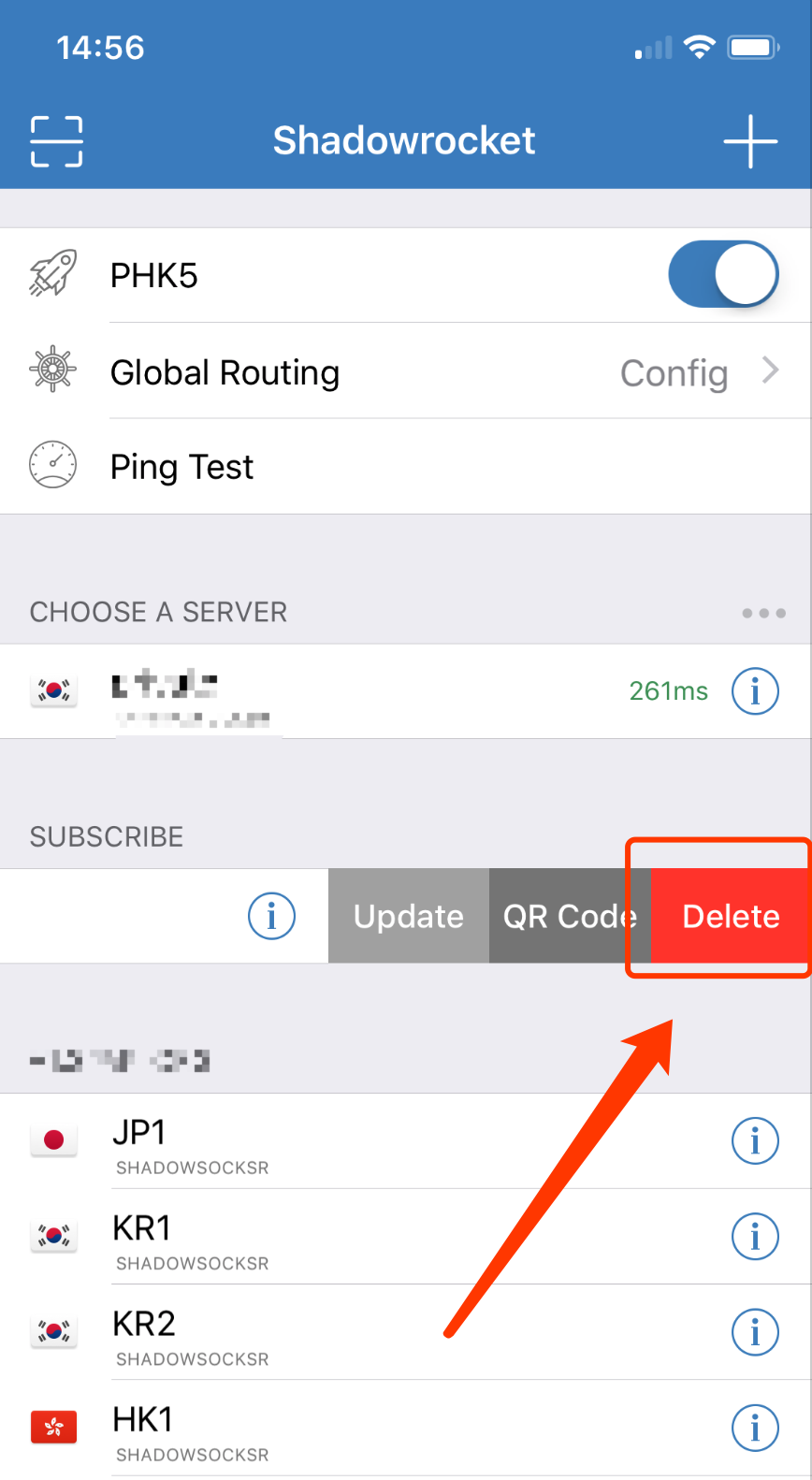
2. All servers will be removed with the deletion of the subscription. If not, please left slide to remove them as well.
D. Resetting the Android client app
1. Start SSR app in your Android system, press the 「ShadowrocksR」title, as shown below.
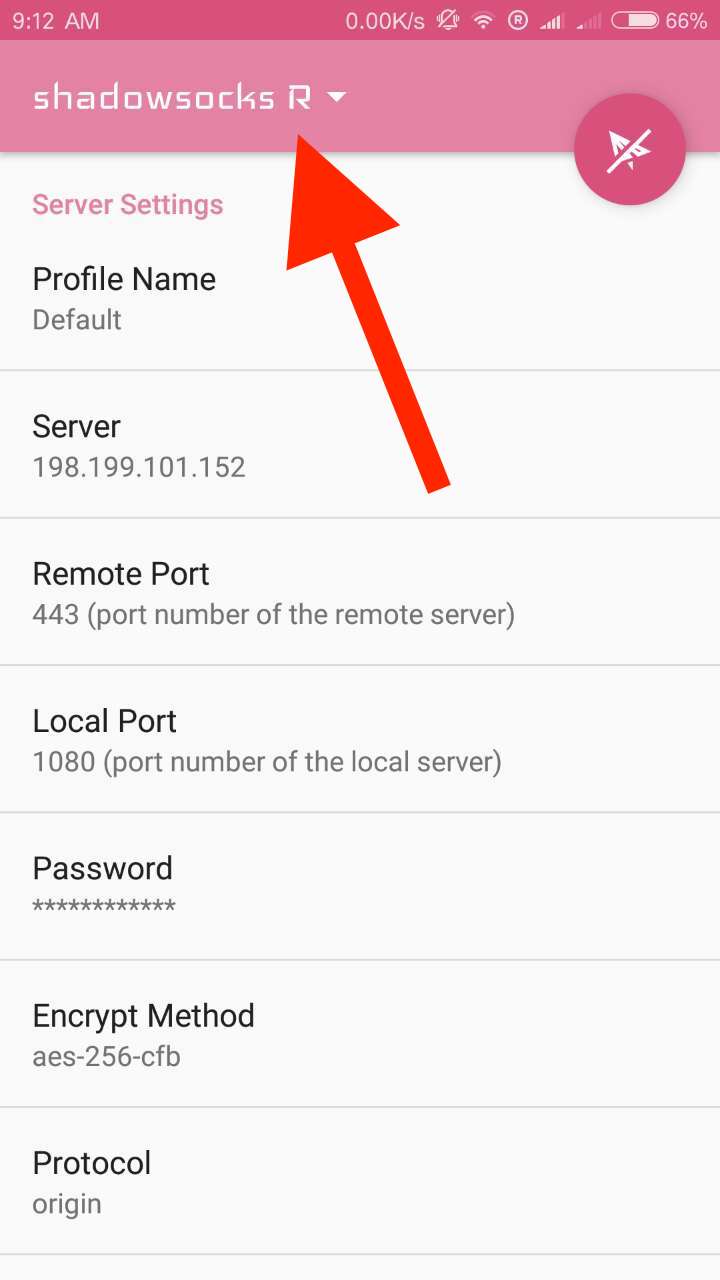
2. Press the 「+」button in the bottom of the screen, then press 「Add/Update SSR subscription」
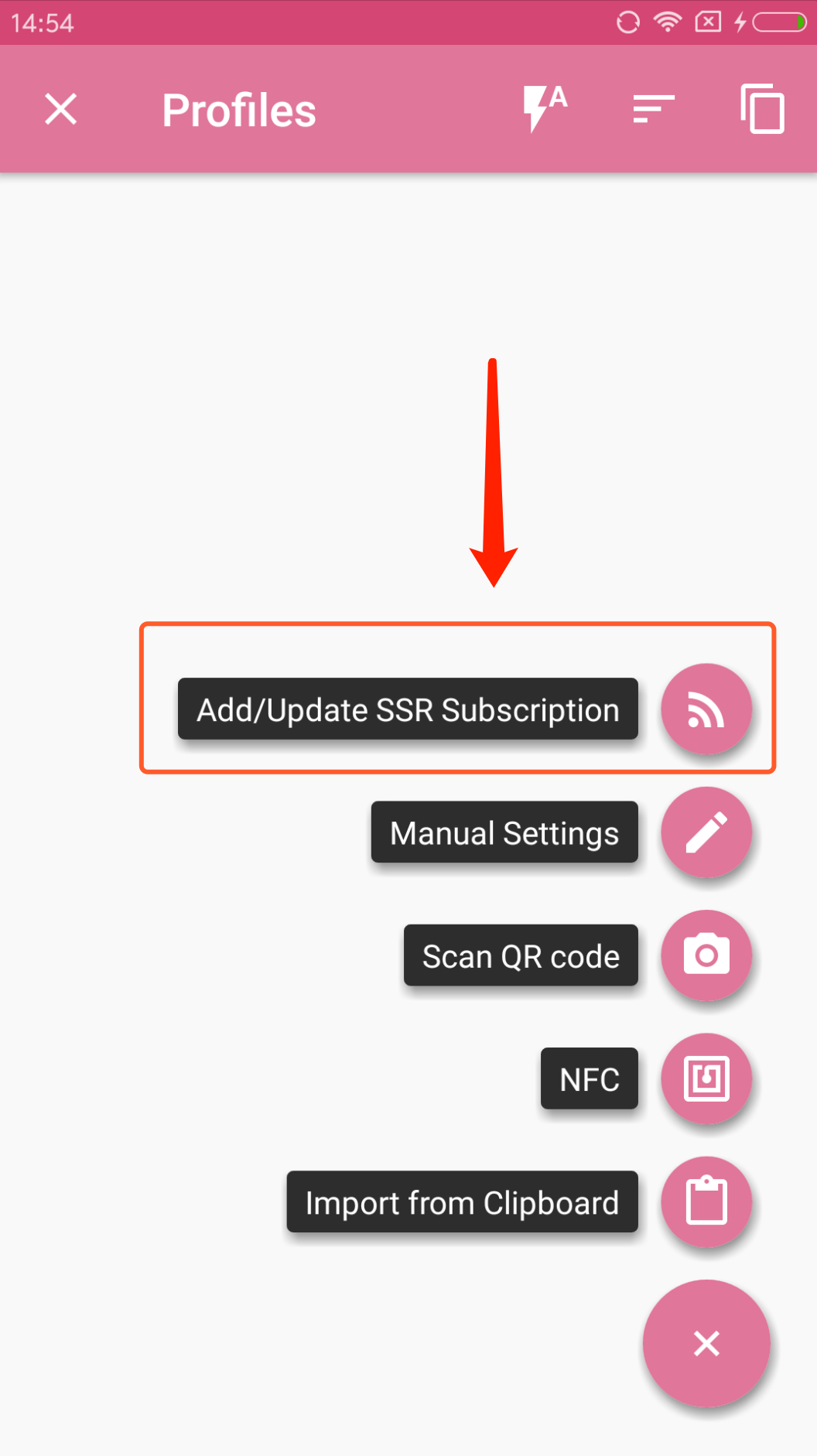
3. Left slide all subscriptions showing on the screen to remove them.
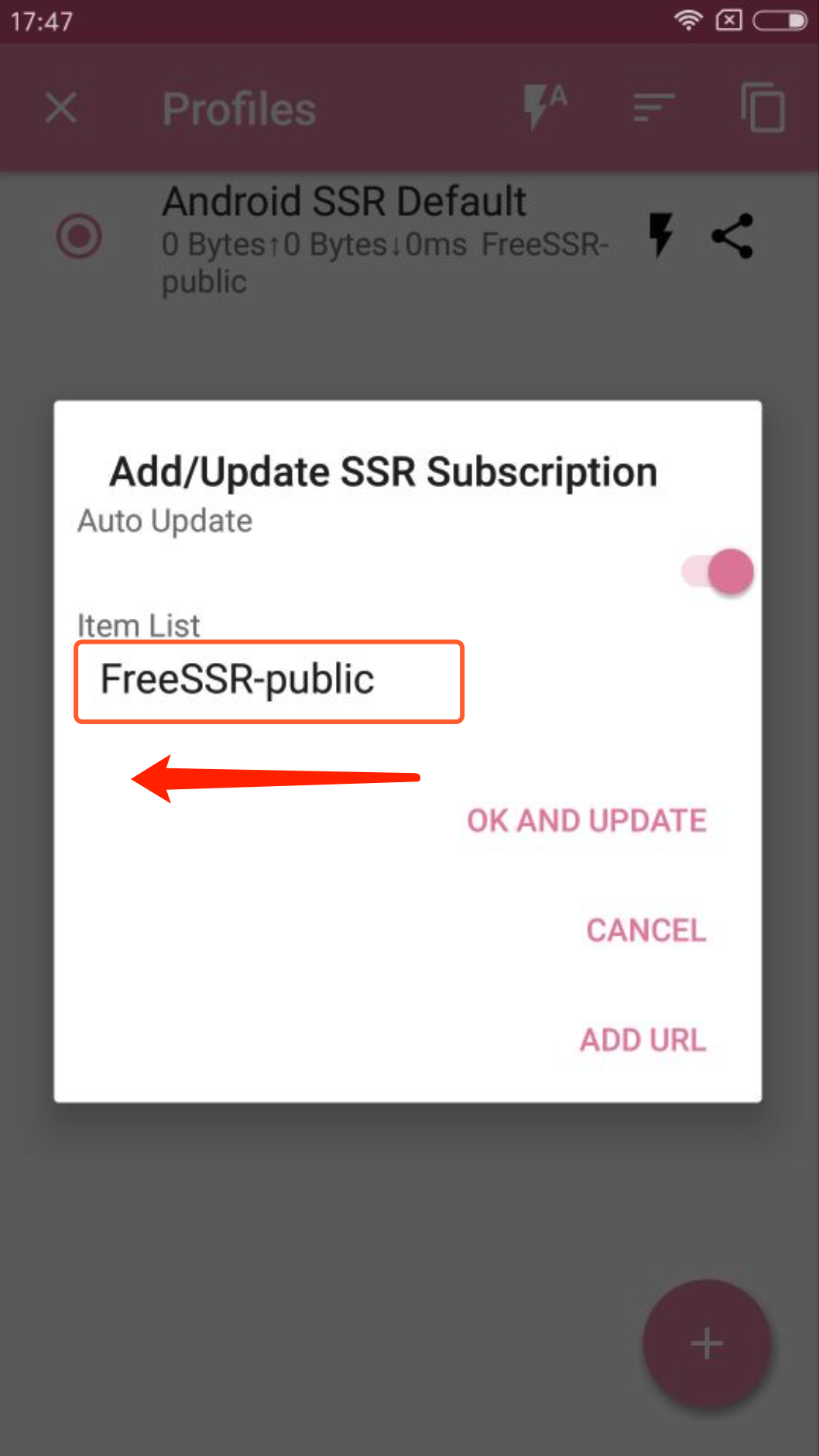
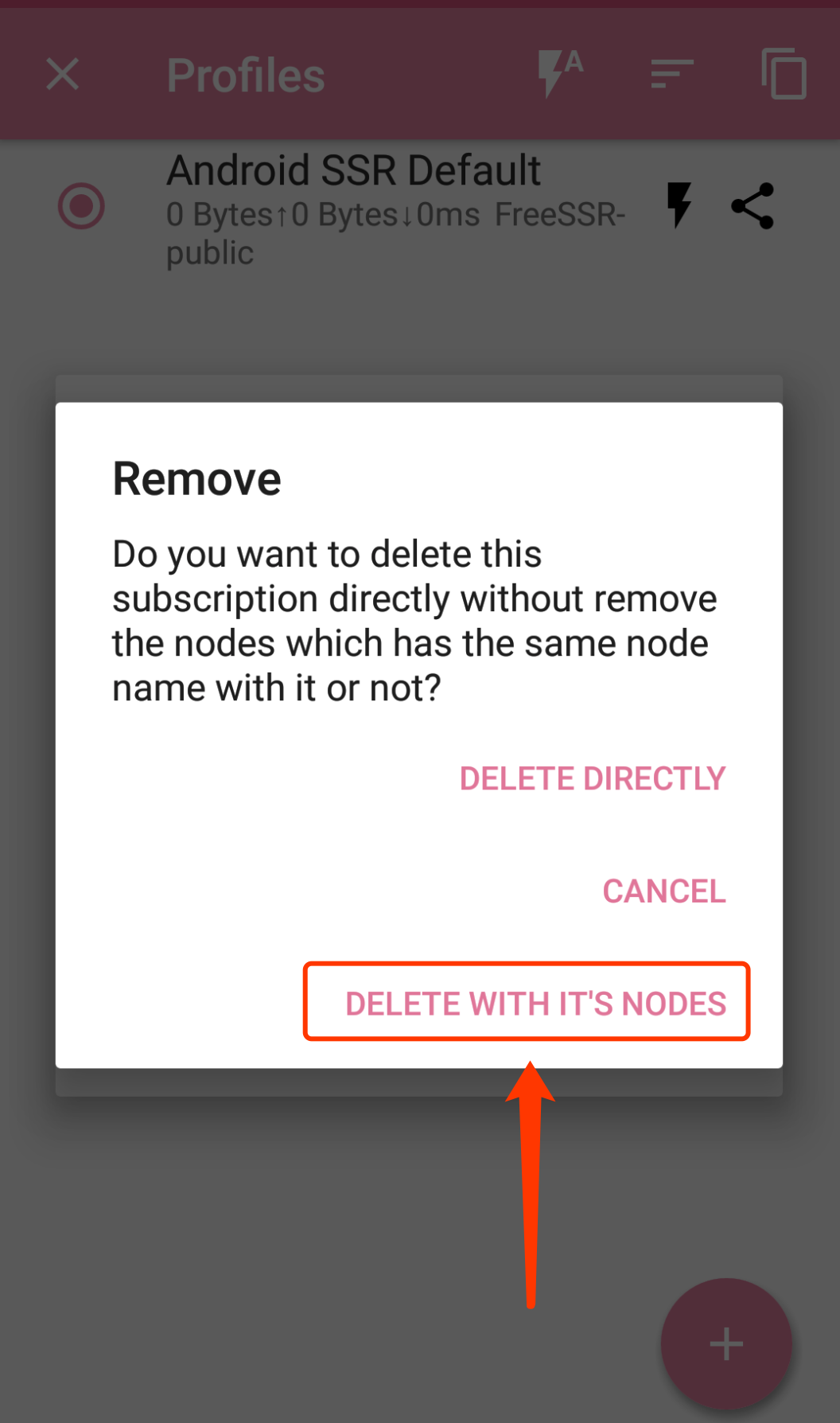
4. Select 「Delete with its nodes」as shown below.\