
Here we will guide you on how to set up SocketPro on iOS. Let's get started.
We will have you setup with only a few steps:
- Download the app
- Install the app
- Import configuration
- Select a server
- Turn on the connection
Note: To setup SocketPro on your iOS device (iPhone or iPad) we recommend you also have a computer (Windows or MacOS) available as well. In this guide, we assume you have your iOS device and a computer available.
1. Download the app
On your iOS device go to the app store and search for the app called "Shadowrocket".
Note: This is a paid app. Unfortunately, that is the current situation. We are not the owners or developers of this app. The payments for this app do not goto us. [Read more here on why this is a paid app]
Because this is a paid app and the pricing of that is out of our control, we offer one month extra subscription time as compensation. Please contact us through our support channels, and we will add the extra time to your paid subscription.
2. Open the app
Ok, time to open the app. Find the Shadowrocket icon on your device and tap it to open the app.
3. Import Configuration
In this step, we need to copy the subscription link. You can find it on the macOS page, press the button to copy the link.
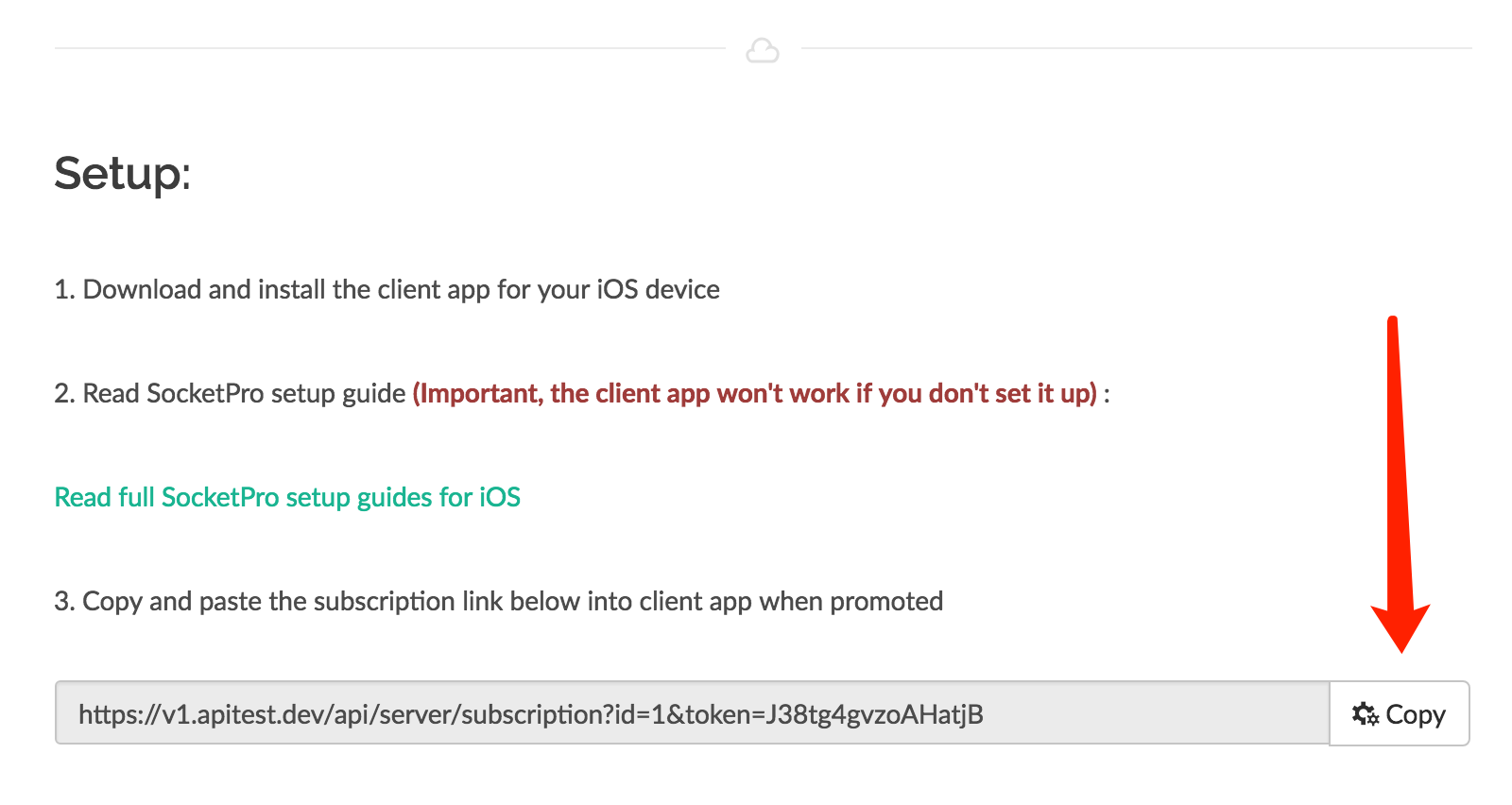
If you copied this link on your desktop device, you could transfer this link to your iOS device via WeChat or other similar tools.
If you copied this link on your iOS device, please switch to "Shadowrocket" app.
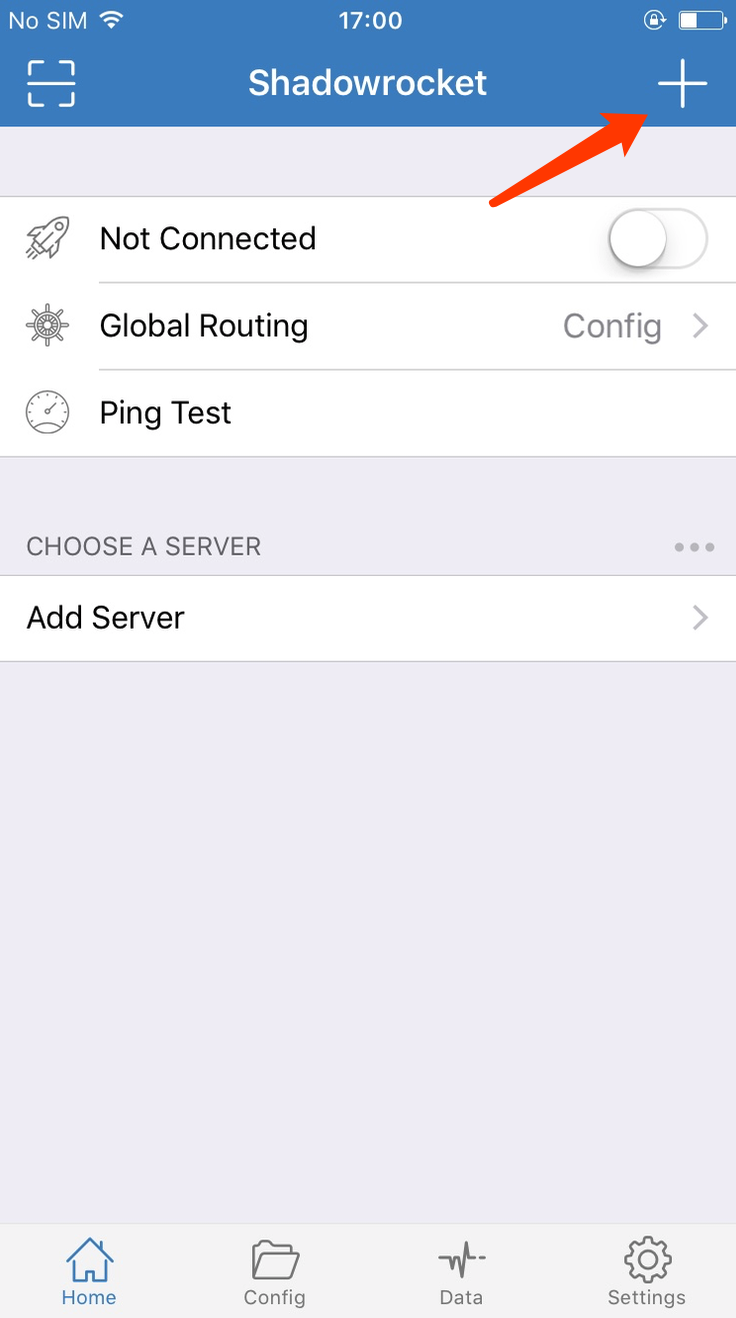
Press the "+" button first.
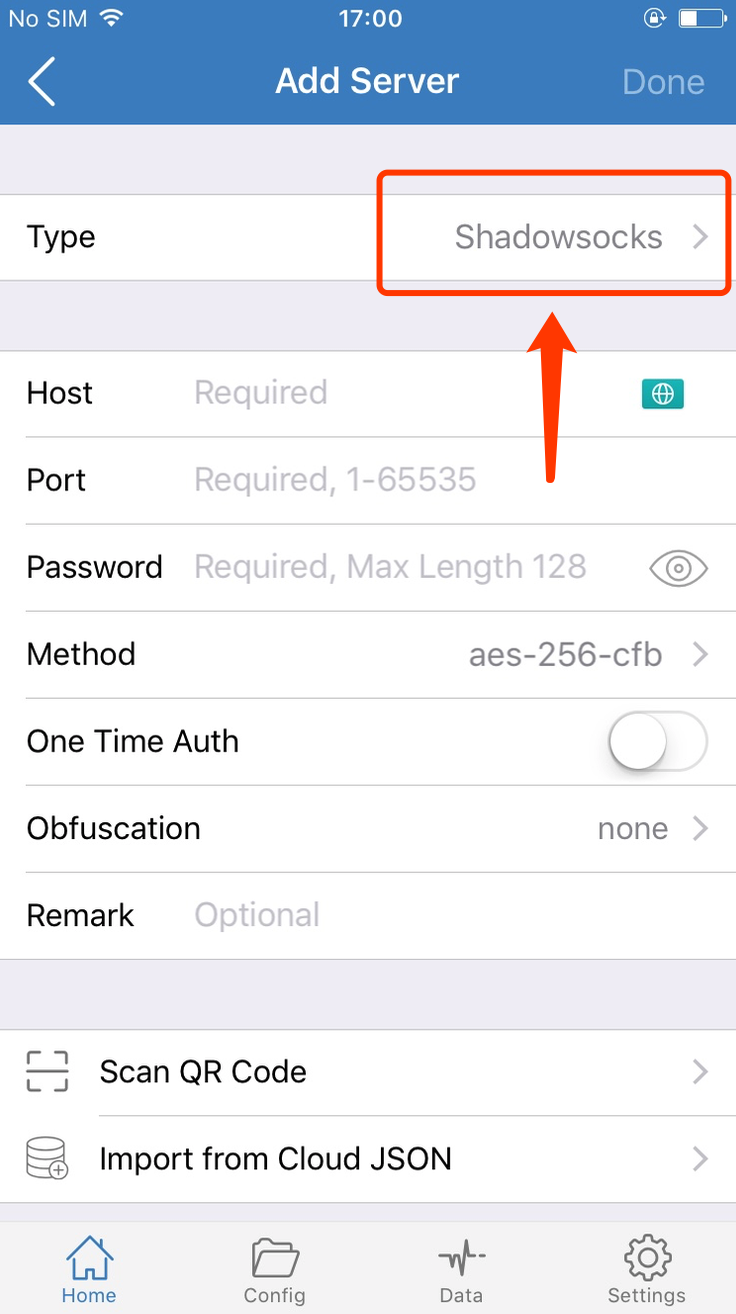
Select "Type" by pressing the red section
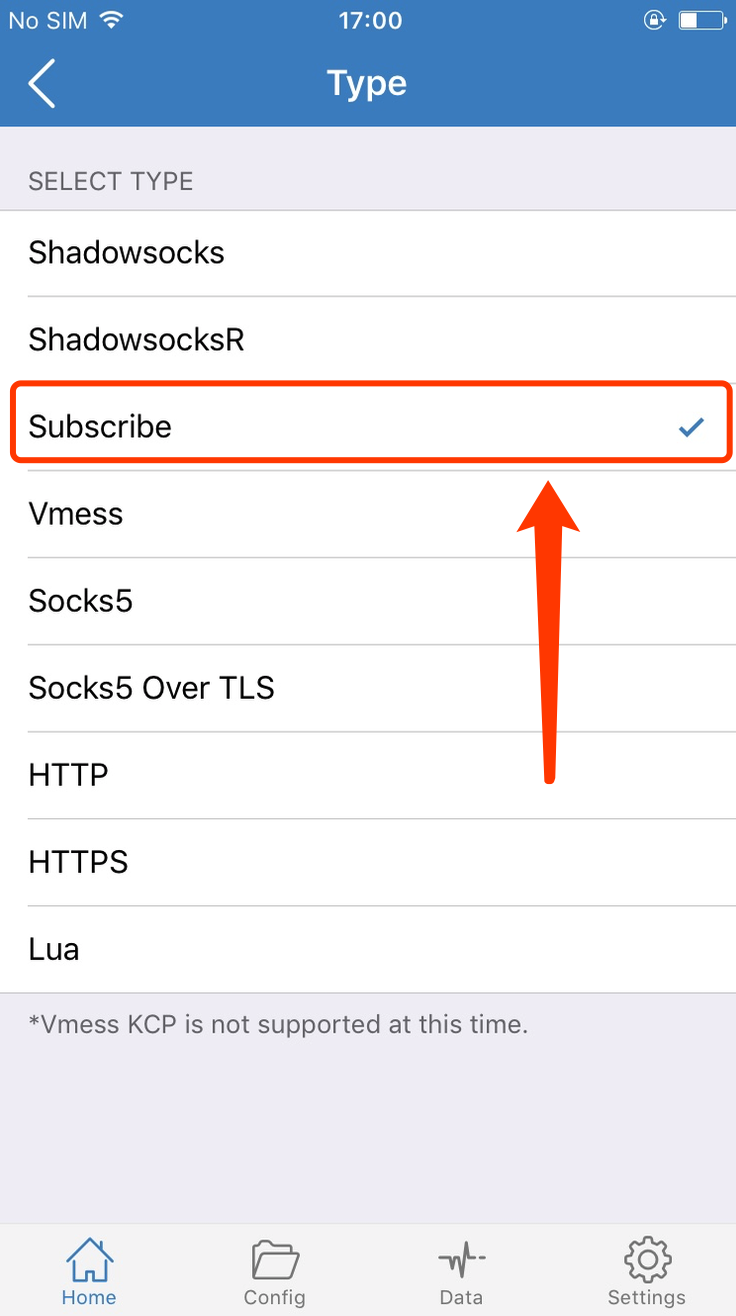
Select "Subscribe":
Paste the previous link you copied into "URL" section
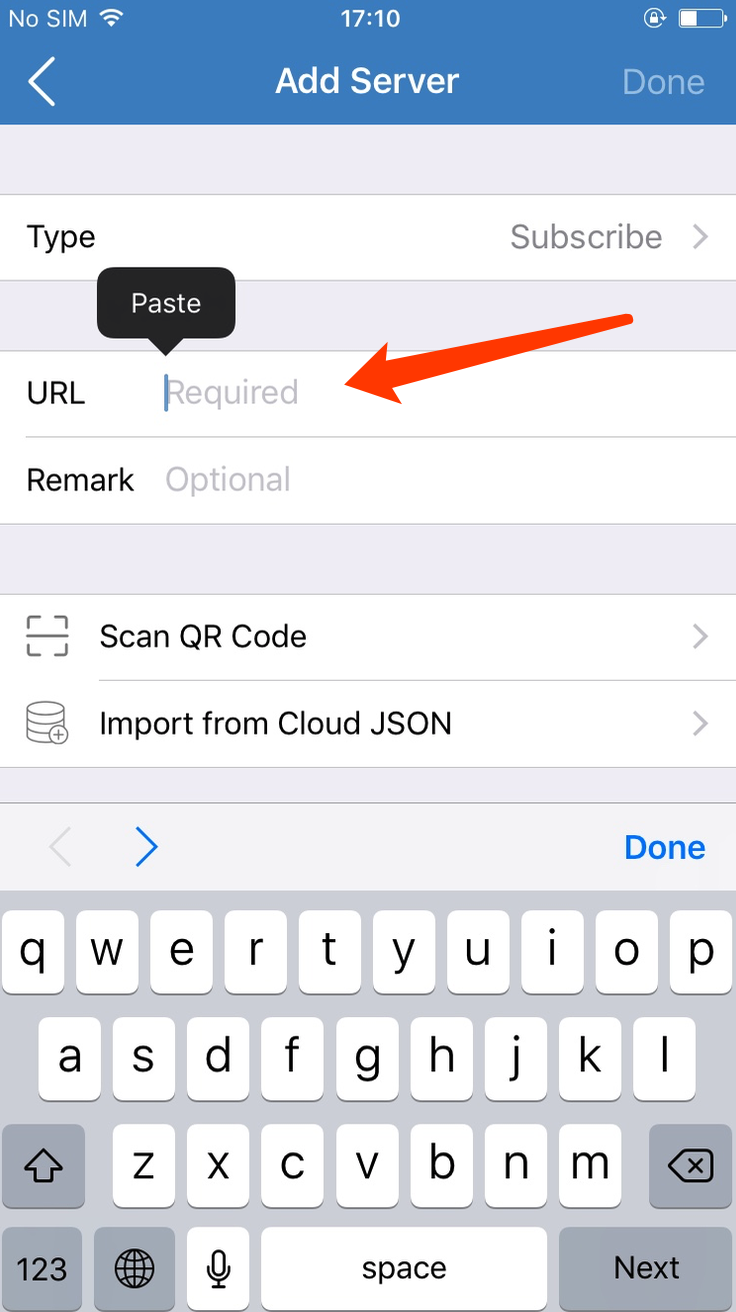
Press "Done" to import this configuration
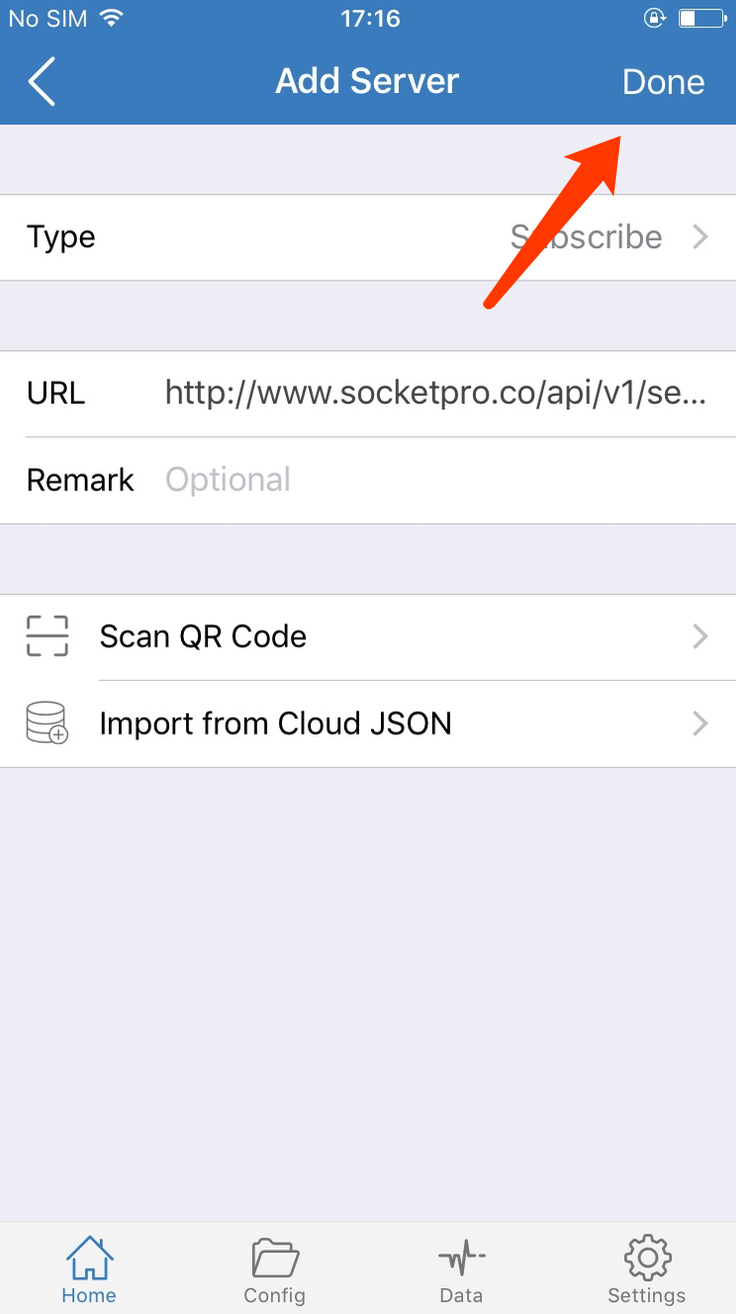
4. Select a server
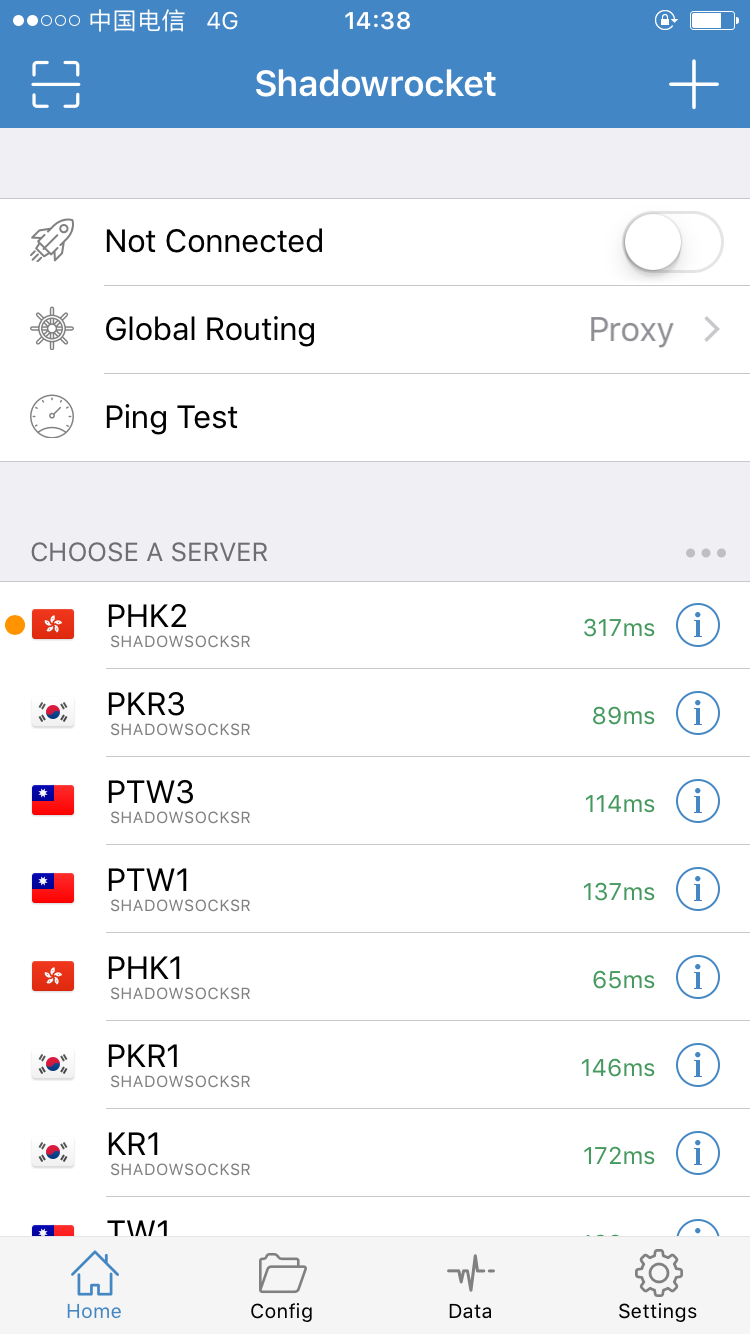
After adding configuration this way, your app will look something like this, and we need to select which of the added servers we would like to use. The orange dot in front of a sever indicates which server is selected.
In this case, PHK2 is selected.
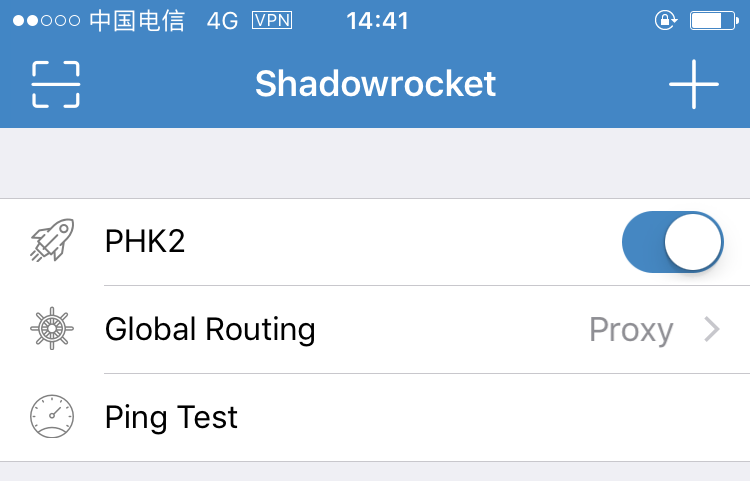
5. Turn on the connection
You are all ready now to start using SocketPro, and all you to do is flip the switch to turn the connection on.
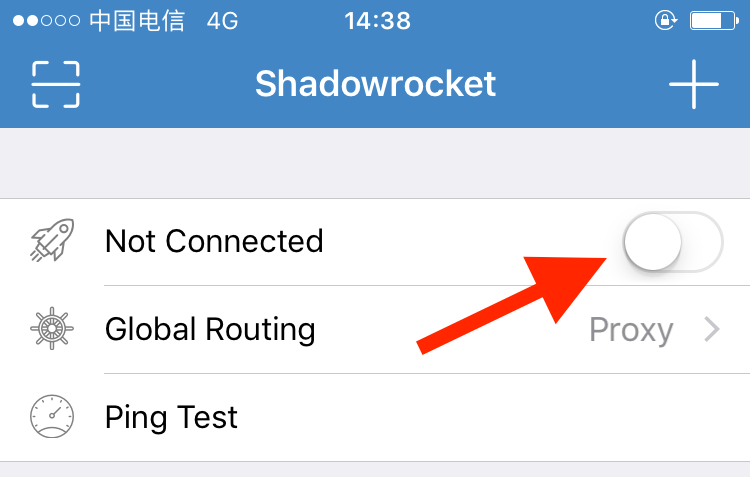
After flipping the switch, it will indicate it has turned on and to which server it is connected.
Also, a [VPN] icon will appear in the top bar next to the network indicators.
That's it, you've done it. Your now able to enjoy the whole internet without your locations restrictions.