
Use this tutorial to learn how to set up your PlayStation 4 with SocketPro by changing the proxy setting on your PS4.
1. Preparatory works
There're a few preparatory works we need to do before connecting:
- You'll need to have a computer available and running our client app
- Your computer and PS4 should connect to the same router
- The port using by client app should NOT be blocked by any firewall on your computer or router (By default, Mac uses port 1086, while PC and Linux uses 1080)
Please check your network environment meet all requirements above.
2. Get the Lan IP of your computer.
- If you're using a PC (Windows system), please read this article.
- If you're using a Mac (macOS system), please read this article.
- If you're using Linux, please read this article.
Retrieving your Lan IP address based on your system by reading the articles provided above. After that, please take a note of your Lan IP address, we'll use it later. In this case, my Lan IP is 192.168.31.233
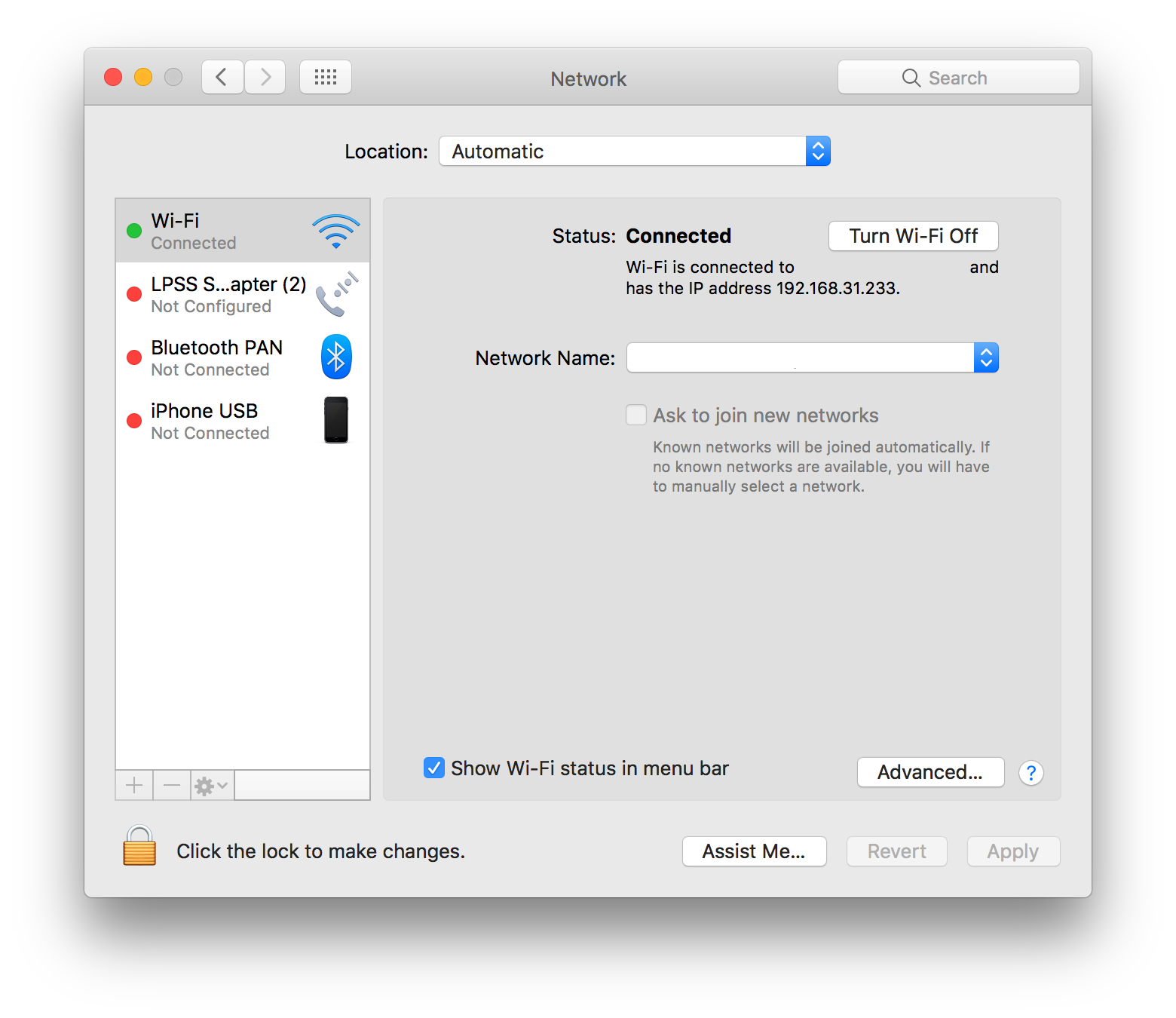
3. Change the local listen address of client app
If you're using our app on a PC: right click the paper airplane icon in the taskbar -- settings -- hover "allow connections from Lan", and press "Submit" button.
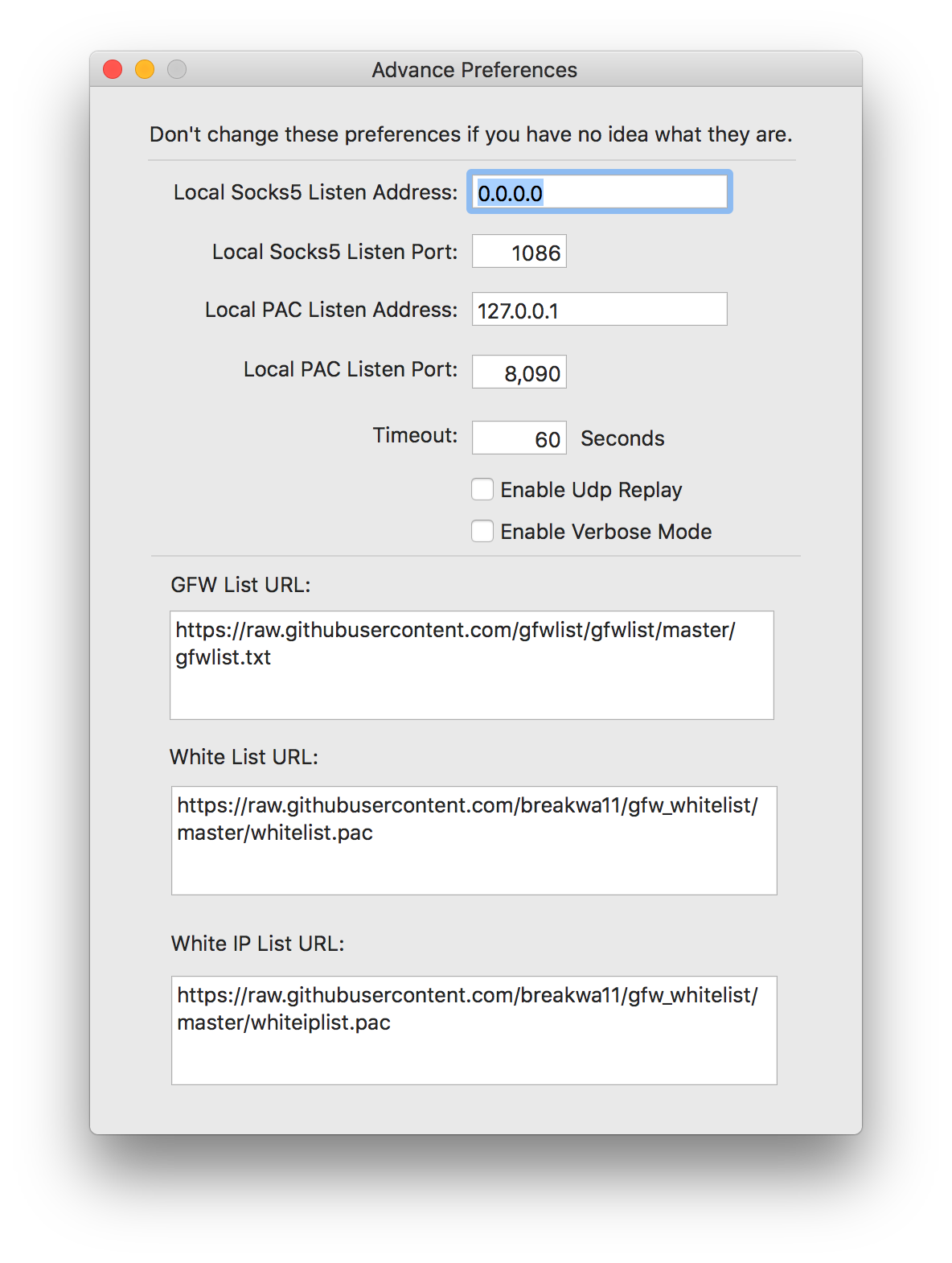
If you're using our app on a Mac: click the paper airplane icon in the menu bar -- Advanced preference -- change "Local Socks5 listen address" to 0.0.0.0, and press the button to close the window that just popped up, if you are asked for authorization, please select "Allow" to authenticate and confirm with your username and password.
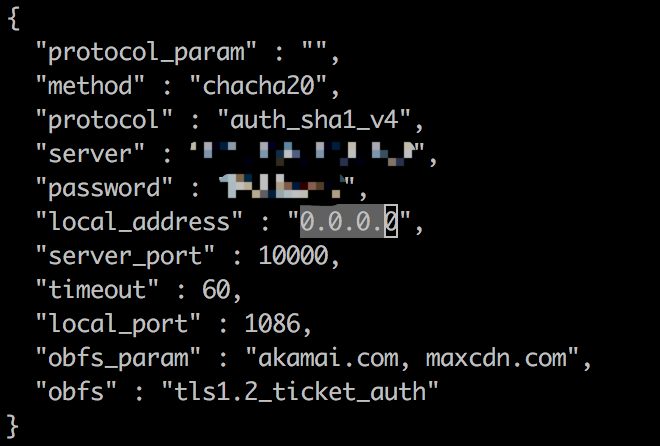
If you're using Linux: find and the configuration file that you're using. Open the configuration file with an editor, and change "local_address" field to "0.0.0.0". Restart your client app.
4. Configure proxy setting on your PS4
Turn on your PS4, open "Settings" -- "Network" -- "Setup Internet Connection":
- “How do you want to connect to the network?”: select Use Wi-Fi or Use a LAN Cable, depending on your Internet connection. If you select the wi-fi option, you will have to enter your wireless network credentials
- “How do you want to set up the Internet connection?”: select Custom
- “IP Address Settings”: select Automatic
- “DHCP Host Name”: select Do Not Specify
- “DNS Settings”: select Automatic
- “MTU Settings”: select Automatic
- “Proxy Server”: select Use, input your Lan IP address of your computer your previously noted, and input the port number (for Mac: 1086; for PC and Linux: 1080). Select Next when it's done.
- “Internet Settings Updated”: select Test Internet Connection.
Congratulations! You've connected your PS4 to SocketPro! If you meet any issue during this setup, please contact us for help.